
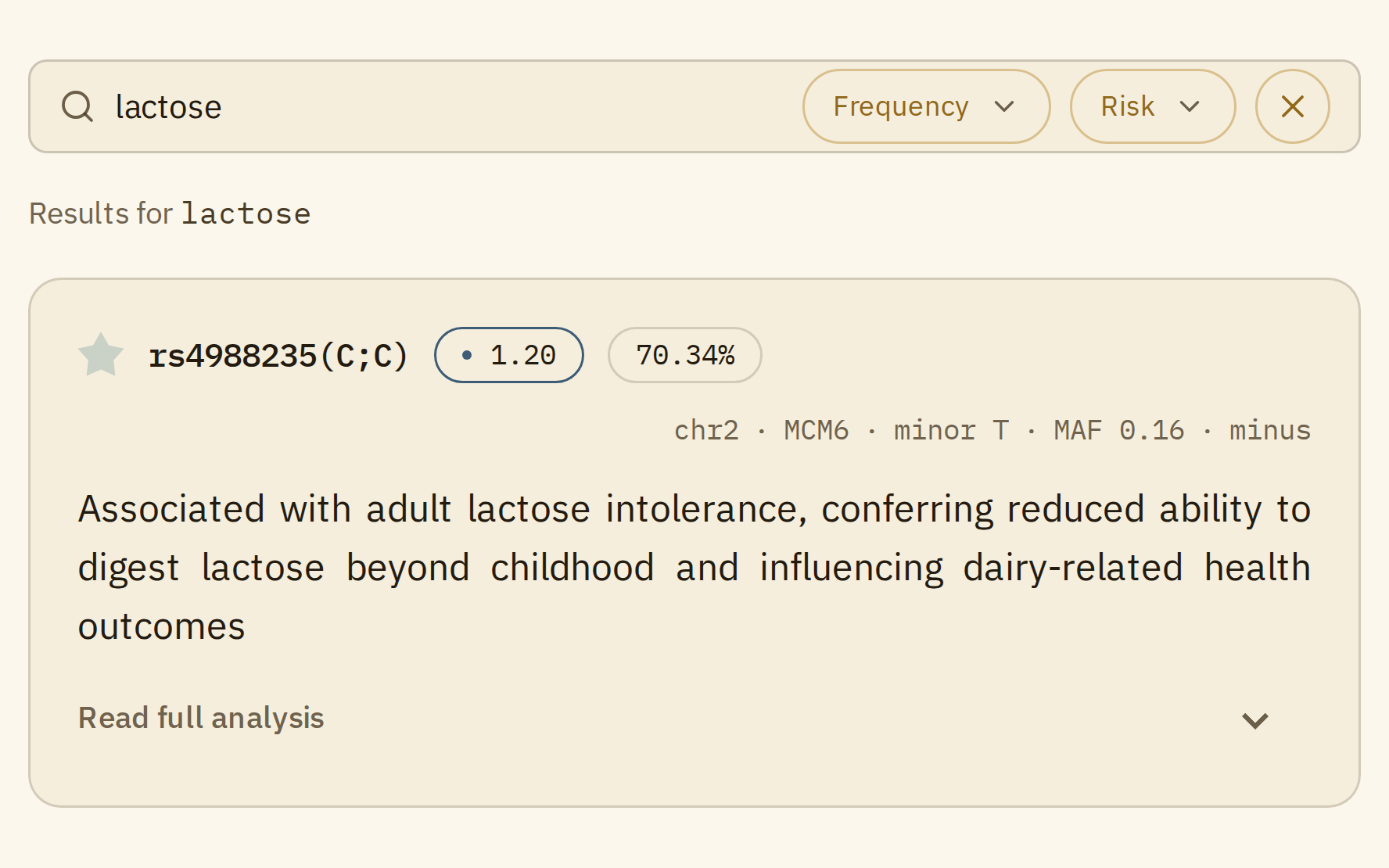
The full report is every variant in your report with a summary, in one list you can search. Open it with "Full report" in the top menu. With nothing typed, it shows all your variants, the highest-impact ones first.
Searching
Type a condition, a trait, a drug, a gene or an rsID in the search box, then press Enter.
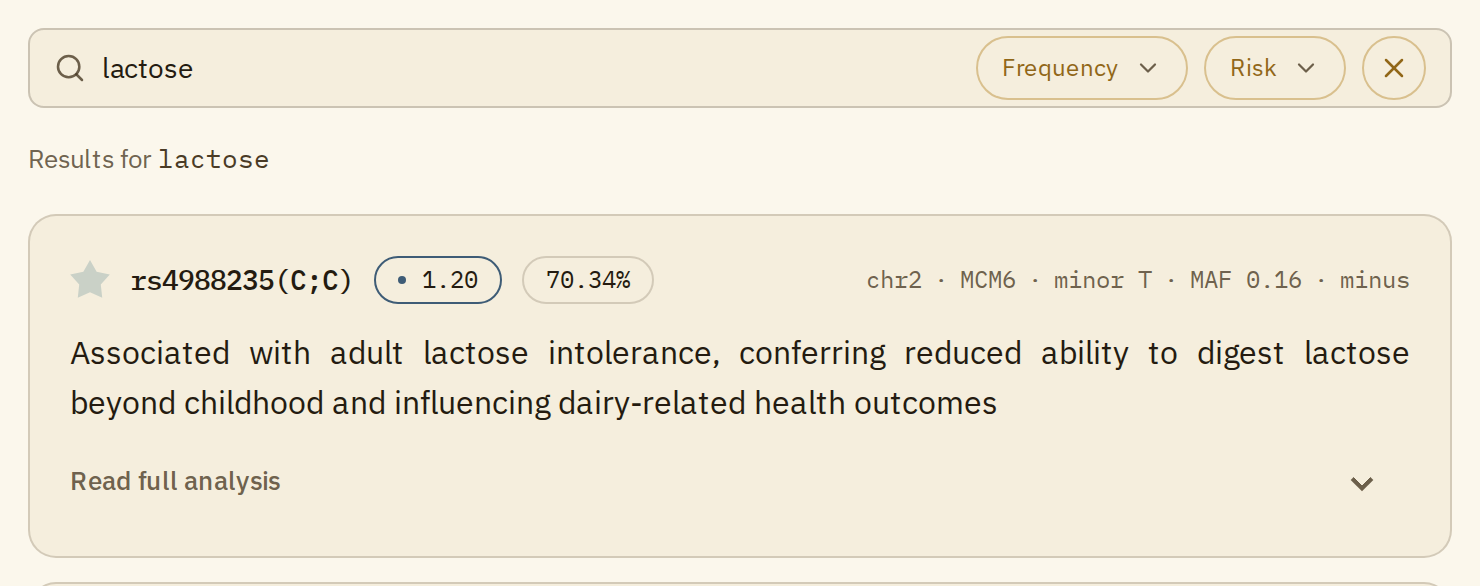
Each result is a variant card, and more load as you scroll. Variant geno card explained walks through everything on a card. You'll also see a few variant groups: sets of variants that are read together, like a haplotype. The FAQ explains them.
"Read analysis" on a card opens that variant's own page with the full analysis. A variant group has no page of its own, so its card opens in place, and "Hide analysis" closes it again.
If you type an rsID, such as rs4988235, the search goes straight to that variant when it's in your report.
On the free tier you can search everything. A few cards are marked as free to read, and their analysis opens like any other. The rest are locked: the summary is a blurred preview, with an "Unlock analysis" button below it. Once you unlock all your reports, every card opens.
Suggestions as you type
After a few letters, a list of suggestions opens under the search box.
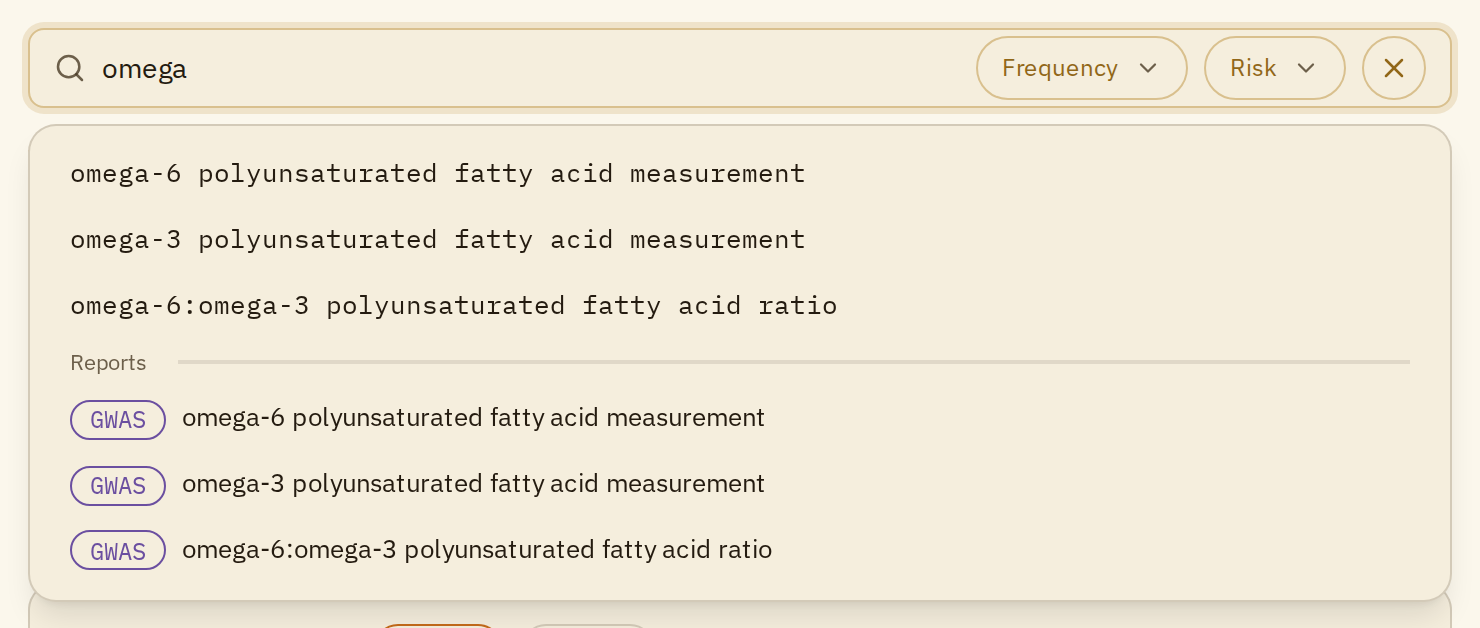
The top part is search terms: pick one to search for it. Under "Reports" are the matching reports, each with a GWAS badge. Pick one of those to go straight to the report page. Understanding your reports explains what you'll find there.
Filters
Two filters sit at the right of the search box. They work with or without a search.
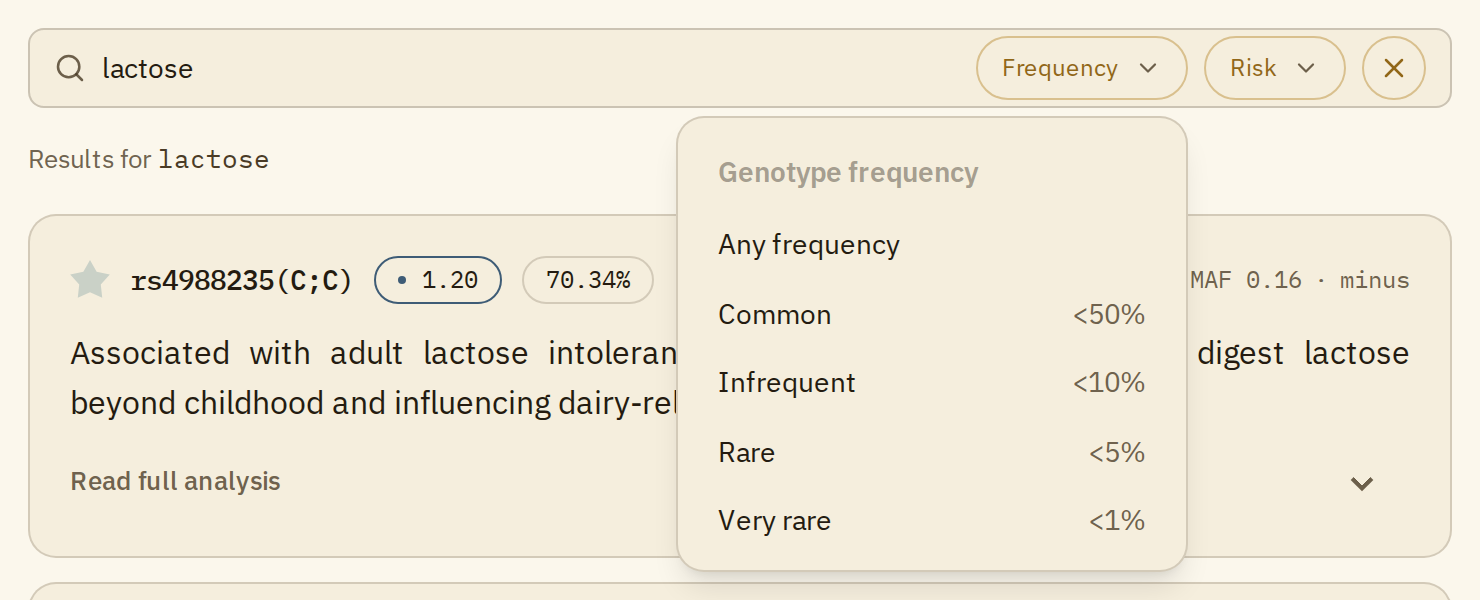
Frequency narrows the list by how common your exact genotype is in the population:
Risk narrows it by the colored dot next to the impact score:
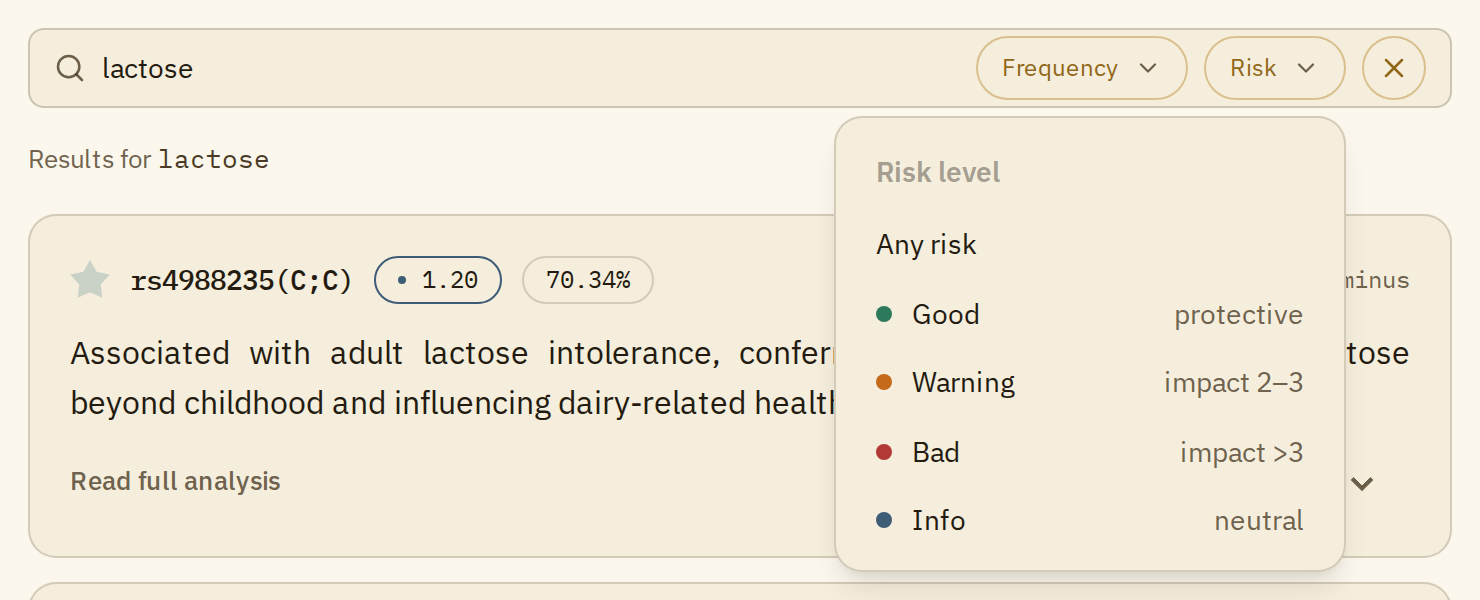
- Good: protective or beneficial genotypes.
- Warning: an impact score between 2 and 3.
- Bad: an impact score above 3.
- Info: neutral, informational findings.
When a filter is on, its button shows your choice, for example "Infrequent (<10%)" or "Warning". The x at the end of the search box clears the search and both filters.
Combining them is often the quickest way in. Rare and Bad together, for example, show your uncommon genotypes with the strongest impact. Rare doesn't mean harmful, though, so read the summary before drawing conclusions.
Searching inside a category
The left menu lists 15 categories, from Aging to Vision. On a phone, open it with the menu button at the top left.
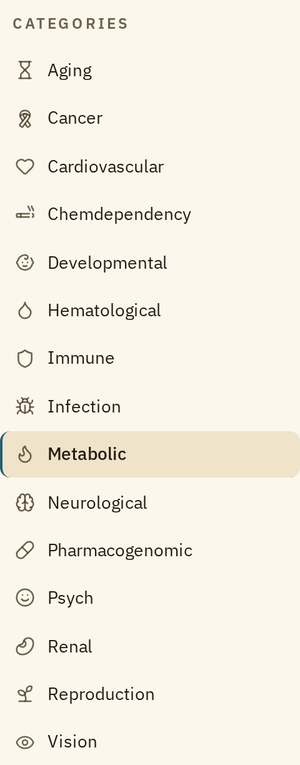
Picking a category opens the full report showing only the variants in that category, with the ones that weigh most in it first. The search box stays at the top, with a "Category" chip in it, so you can search inside the category and use the filters there too.
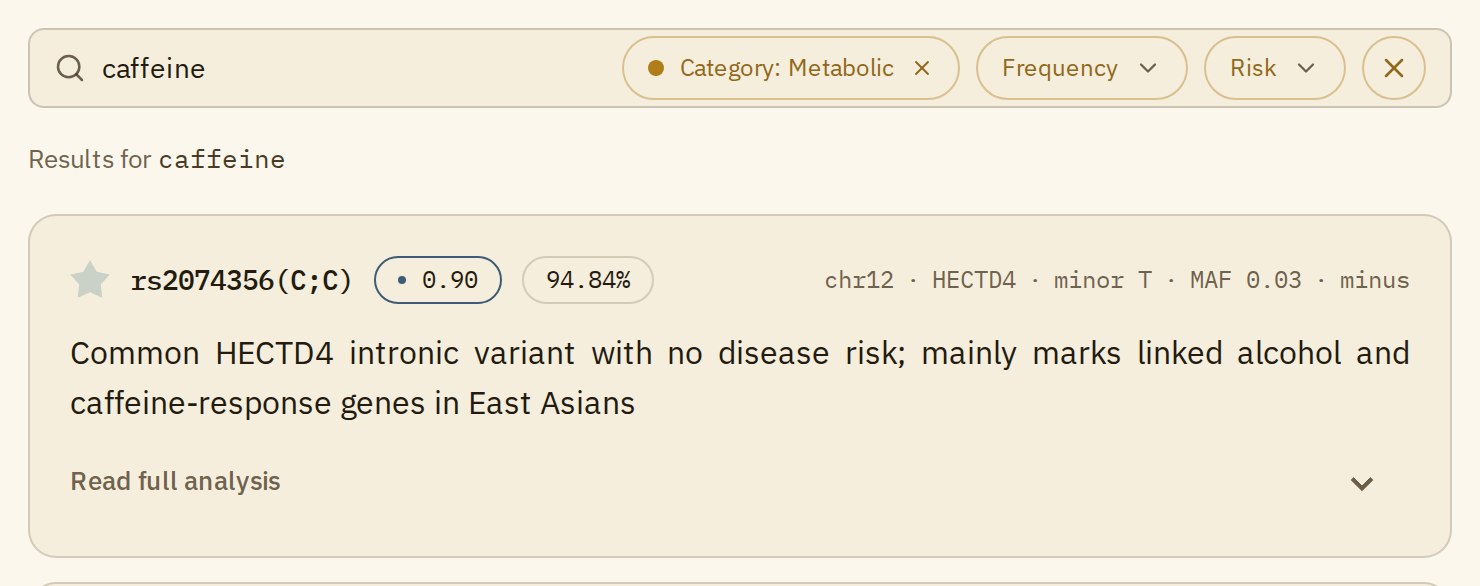
Here the Metabolic category is searched for caffeine. Click the x on the chip to go back to searching your whole report.
Where else to look
- The Rare variants page, in the left menu, lists only your uncommon genotypes: those fewer than 5% of people carry, a cutoff you can change on the page.
- Favorites collects the cards you've starred, so you can come back to them. With all your reports unlocked, "Save as PDF" on that page saves them to a PDF, each with its full analysis.